Retouching on Steroids (a.k.a. Neural Filters in Photoshop)
Victoria Pavlov
9 Mar, 2022
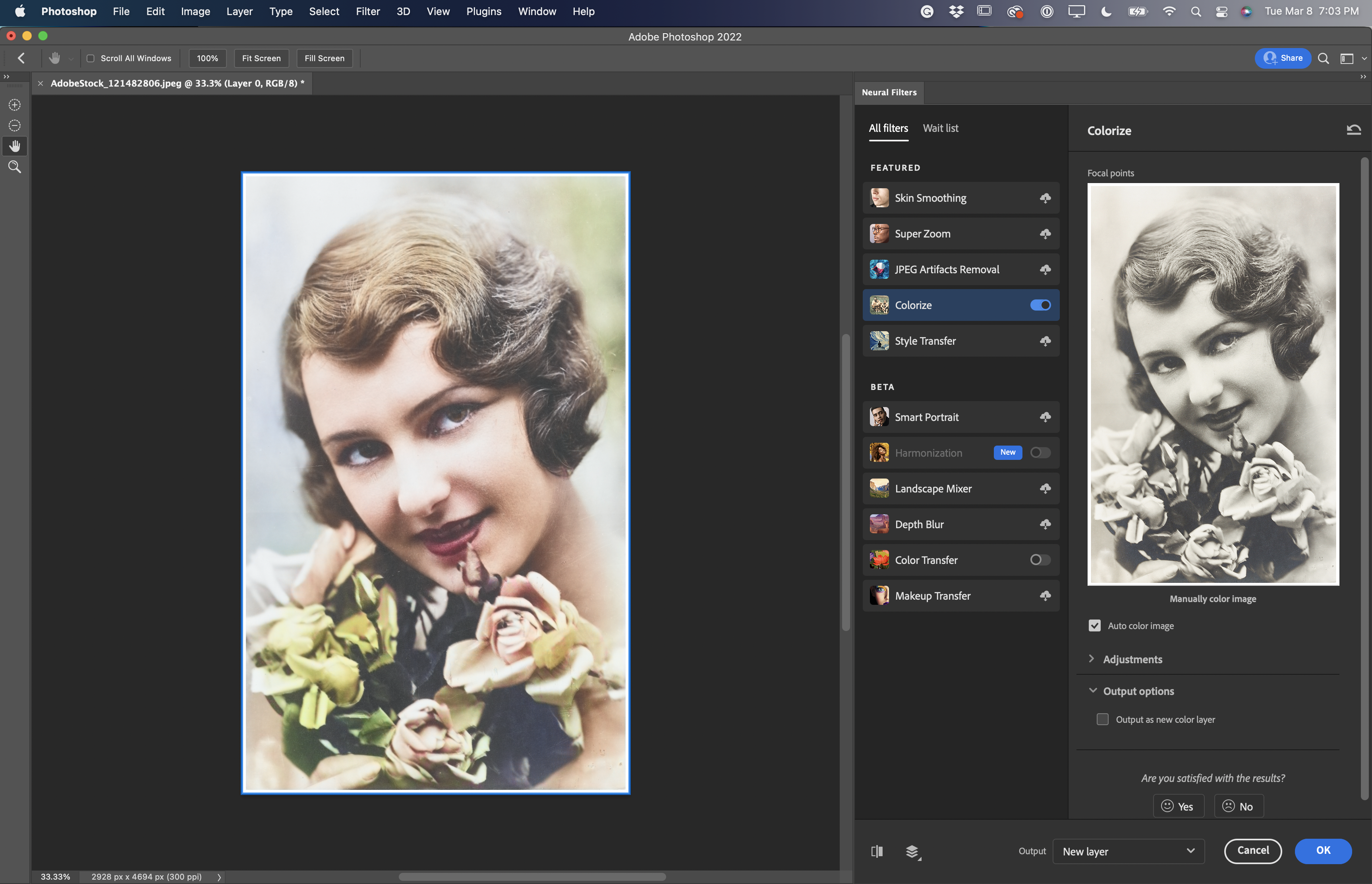
A big part of my business is photo retouching. To be honest, I love it very much. It’s always something special about restoring old photos, bringing memories back. You can imagine how happy I was with the “Colorize” Neural Filter in Photoshop. With the Colorize filter I can colorize old photos almost with one click (I said “almost” because sometimes you need to move the sliders assigned to this filter). Let me show you what I am talking about:
This image I downloaded for free from Adobe Stock (thanks Adobe)
I have only one layer and it is locked. It’s absolutely not necessary to unlock or duplicate this layer.
Filter > Neural Filters
From here enable “Colorize” (if you opened Neural FIlters or you’re trying to use “Colorize” the first time, you will need to download it first. Simply click on the download icon next to the filter’s name)
And just like that Photoshop will colorize your image.
If you are happy with how Photoshop, auto-colored the image, you are all set. If you want to add more personal touches, collapse the “Adjustments” menu. Now you are ready to rock in roll.
From the “Profile” drop-down menu, pick any profile you are happiest with.
Today I will go with “Retro High Contrast”. I believe this profile brings more details to the photo.
I adjusted “Color artifact reduction” and Nose reduction” sliders because this photo is old has some noise in it.
You have the ability to preview before/ after
If you have multiple layers you also can preview them.
Now let’s talk about “Output Setting”. This setting completely depends on your preferences and workflow. Below image is the setting I applied to this image.
Just like that, my photo was colorized.
Note: 1:Pay attention to all sliders in the “Adjustments” workspace. They are very helpful (including the “Profile Strength” slider. Using this slider you can specify the amount of selected profile applied to the image)
2: Not all images could be colorized in one click like we did today. Sometimes you will need to apply feature steps in Photoshop, BUT the “Colorize” filter is ALWAYS a good first step which makes colorizing images in Photoshop much easier.
Victoria Pavlov
6 Mar, 2022
My Tech Blog
This year on March 8, I created this art supporting the brave, strong Ukrainian Women.
This vector art is especially close to my heart. I know the horror of trying to escape being killed. I know that protecting your child during war takes all the power God gave you. I know what it means to not be sure that your child will have any food today or tomorrow. I still remember (every day) the feeling of hunger and cold.
This year I am sharing my March 8th art earlier because I am hoping you could share it. I am asking you not because of my art. I am asking you because I believe that the power of art affects everyone in a positive way. I hope that the brave, strong Ukrainian women will see it and see that they are not alone. I hope that the entire world sees how brave and strong they are. I hope when they look at this art, they will feel that they are not alone.
Art by Victoria. Created in Adobe Illustrator on iPad.
How to Create Unique Art Even If You're Not a Painter (Part1)
Victoria Pavlov
2 Feb, 2022
Let’s talk about creating unique art even if you’re not a painter. You asked me, and I heard you. So let’s get started.
I have opened an image in Photoshop that I want to convert into art
Filter > Camera Raw Filter
The first thing in Camera Raw I moved was the Texture, Clarity, and Dehaze sliders to a negative value each. Below you can see how I did it based on my image. The purpose of moving those sliders to a negative value is to apply a little painterly effect to the portrait. We still can see all details in the portrait. Don’t move all 3 sliders all the way to the left (negative value). Move the sliders based on your image.
When you’re happy with the result, click OK.
Image > Adjustments > HDR Toning.
Note: HDR toning requires flattened layers. If you have more than one layer, please, merge or flatten them. Your image doesn’t have to be shot in HDR mode. So don’t worry about it.
In the HDR Toning workspace, I applied a few adjustments (see image below)
Note: I would recommend checking the Smooth Edges and Preview boxes.
Now the image has more contrast and this will make the final result look more artistic. Each image is different. Try to apply adjustments in the HDR Toning workspace based on your image and taste. Using HDR Toning workspace I applied the painterly effect to the image.
Time to jump back to the Camera Raw Filter. Here I added a positive value to Dehaze and Clarity. I moved the Texture slider to the left (to add negative value to it). I decreased the value of Vibrance and added +1 to Saturation.
Now click on Browse Profiles.
In the Profiles workspace, I expanded the Vintage library and applied the Vintage 08 profile. After I clicked on the Vintage 08 profile, Camera Raw displayed an Amount slider for me. I moved the slider all the way to the right. Now Camera Raw applied 200% profile to amount to my image.
After I was happy with the result, I clicked OK.
The next step was jumping back to the HDR Toning workspace where I increased the Details value using the Detail slider.
The last step in the HDR Toning workspace is to move the Vibrance and Saturation sliders to -100 value each, the Radius slider to 5–px, Strength slider to 4.00
The last step today is > Image > Adjustments > Shadows/Hihlights
Below is the setting I applied to my image. Feel free to adjust your image in a way you like (it’s your image, it’s your art).
After you’re happy with the result, click OK.
Tip: This is optional. if you want to add more contrast to your art > open the image in Camera Raw. Here to add more contrast, exposure, texture, clarity, and dehaze. Below, you can see the setting I applied to my image.
I’m very excited to announce my NEW online art store. As an artist, I create original art both digitally and traditionally every day. Many of you have asked how you can buy my original art or if I sold my art on clothing and other products? Now I do and I need your support. Please consider placing an order today for yourself or for a loved one. Thank you!
I am excited to announce the Adobe Photoshop & Illustrator Seminar. On March 2nd, 2022. During this full-day conference, you will learn about getting started and easily navigating in the digital imaging world.
All classes will be accessible for up to one year to all attendees.
All classes are available as stand-alone classes for $29.99 each.
Seminar Classes:
How to get started with Adobe Illustrator In this class, you will learn how to start your first project in Adobe Illustrator. After this class, you will be more confident in creating vector art using Adobe Illustrator on Desktop and iPad even if you’ve never used Illustrator before.
How to get started with Adobe Photoshop In this class, you will learn how to start your first project in Adobe Photoshop. After this class, you will be more confident in editing photos and creating art using Adobe Photoshop on Desktop and iPad.
How to create a vector portrait using a reference photo In this class, we will create a vector portrait using a reference photo. You will have the freedom to create vector art using a reference photograph making your creativity shine.
The secret of photo compositing in Adobe Photoshop In this class, you will learn how to combine multiple images to create a realistic-looking composition. We will talk about compositing principles, lighting, shadow, and colors. In this class, you will learn how to combine multiple images to create a realistic-looking composition. We will talk about compositing principles, lighting, shadow, and colors.
Tips and Tricks in Adobe Illustrator In this class, you will learn tips and tricks for getting more out of Adobe Illustrator and to speed up your workflow. You will learn how to create custom, unique brushes, shapes, and more.In this class, you will learn tips and tricks for getting more out of Adobe Illustrator and to speed up your workflow. You will learn how to create custom, unique brushes, shapes, and more.
The background of an image is just as important as the main subject. If you have a simple, one-color background or you have a complicated background, you can make it more interesting using a ready-to-go texture from the Flypaper texture library. I love working with these textures because of the unlimited variations and the simplicity of using them. In this post, I will show you how you can improve the background of a portrait image. Today, I will be using an image I downloaded for free from Adobe Stock. Here is the link to the Flypaper texture website.
Open the image you want to work with. I will be using an image I downloaded for free from Adobe Stock. File number 400733036
Open any texture you downloaded from Flypaper texture. I recommend paying attention to the image’s colors when you choose the texture. In Photoshop, you can change anything, and you can bring all colors in harmony. But my rule is: if I can do something faster, I will usually do it. The background in my image is purple, so I’ll use a texture with a color close to it. I used the “Chainmail” texture.
Now go back to the portrait file and duplicate the Background. Highlight the background layer (original layer)
Select the texture layer > go back to the texture file > Select > All > Edit > Copy Go back to a portrait File > Edit < Paste. Resize the texture layer to fit (if needed). Now your later panel should look like in the image below
Select the “Background copy” layer and choose Subject from the Select Menu.
After the main subject is selected, click on “Select and Mask”
In the Select and Mask workspace, apply any modification to the selection (if needed). Once you’re happy with the result, specify the Output setting to output with a New Layer with Layer Mask and click Done. Below you can see my output setting.
Delete the “Background copy” layer (we don’t need this layer anymore).
Select texture layer
Set the Blend mode for this layer to “Multiply”. Bring layer’s opacity down to 45%.
Now your background has a more interesting texture.
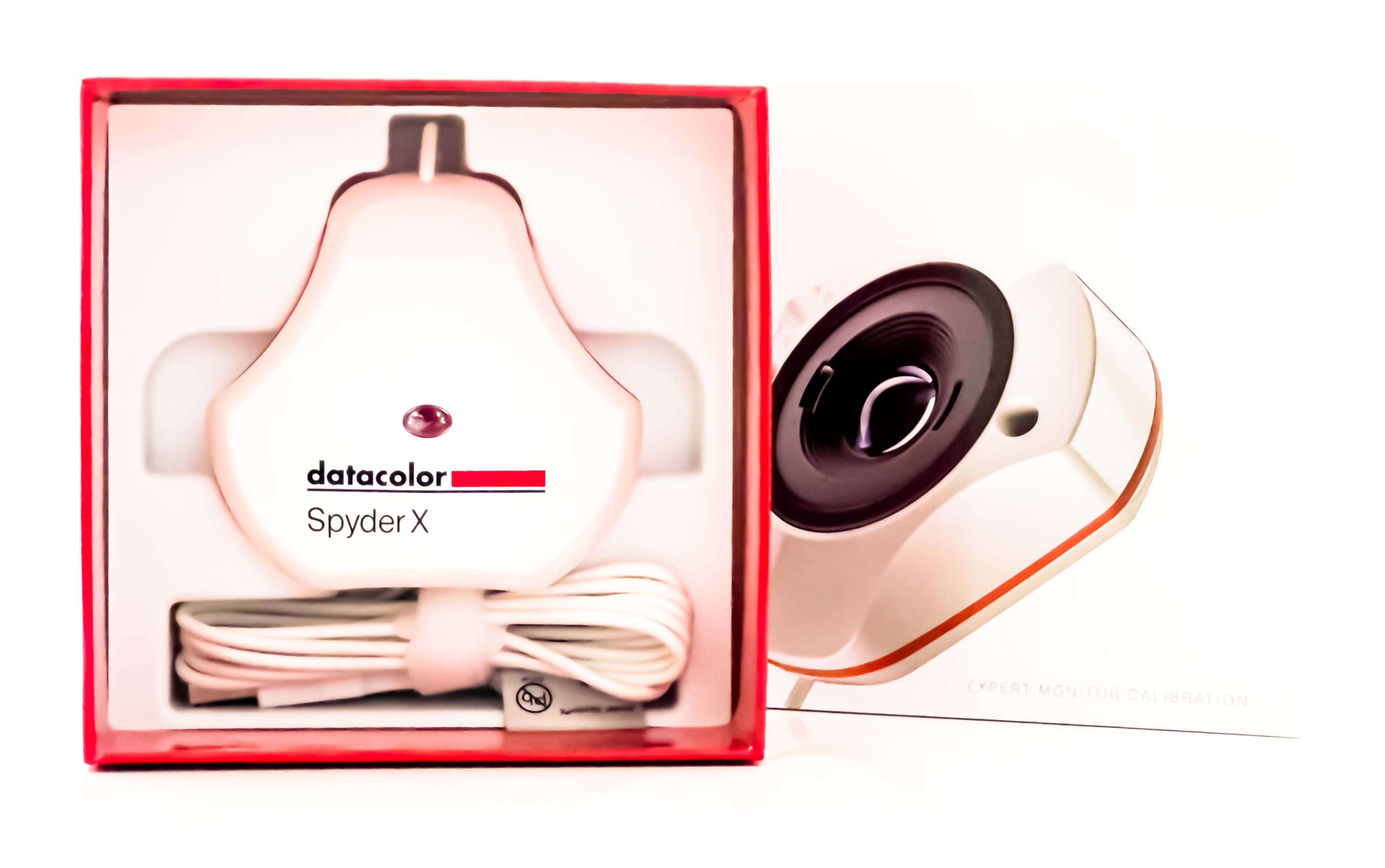
Get the Right Color with a Datacolor SpyderX Elite
Victoria Pavlov
3 Jan, 2022
Many of you asked me if I calibrate my monitors. The answer is, yes I do. I calibrate my Wacom displays.
Why? I work with digital imagery every day for up to 15 hours a day. For me, as a professional, it’s very important to be able to see the “true” colors across all my devices and monitors. If you are using only one device/monitor, it is as important to see the “true” colors as if you are using more than one device/monitor. I can’t stress enough the importance of seeing colors the right way, and I’m not trying to sound overdramatic saying that this is one of the key points in digital imagery, but it is.
Today I’ll talk about Datacolor SpyderX Elite. I have been using Datacolor PyderX Pro for many years. Today, I upgraded to a Datacolor SpyderX Elite. Both are great, but DatacolorX Elite has all SpyderX Pro capabilities plus expert setting such as matching multiple displays, collaboration for projectors, soft-proofing for printers, video, and camera calibration. Using a SpyderX, you can accurately calibrate your display color faster and easier. The Datacolor Spyder Elite provides a more accurate reading of the room’s ambient lighting as well.
So let’s start.
As a designer and artist, I prefer the minimalistic packaging style along with all the necessary information about the product. Datacolor SpyderX packaging meets all my expectations (as a designer and a customer).
Specifications:
System Requirements
Windows 7 32/64 and above
Mac OS X 10.10 and above
Monitor Resolution 1280×768 or greater
16-bit video card (24-bit recommended)
1GB of available RAM
500MB of available hard disk
Internet connection for software download
Supported Display Technologies & Usb Protocols
All recent computer display types
USB 1.1, USB 2.X and USB 3.X
USB A plug, also compatible with USB A>C adaptors for use in USB C ports
Supported Languages
English, French, Italian, German, Spanish, Russian, Japanese, Simplified Chinese, Traditional Chinese, Korean
How to install: First, your monitor should be turned on for at least 30 minutes. No direct light should be on your monitor. Deactivate the Auto-Brightness feature on your monitor.
Next download, install, and activate the software. You can do it from here: https://goto.datacolor.com/getspyderx Plug in the SpyderX into a USB port on your computer (don’t forget to remove the lens cap), and AFTER that, launch the application. Follow the step-by-step instructions displayed on your screen. To be honest the whole installation process is so easy and fast. You don’t have to do anything extra! Just follow step-by-step instructions!
Note: your serial number is located inside the box.
I calibrated my Wacom Cintiq, so I selected “General” for Backlight.
I chose the Step-by-step Assistant.
Note: SpyderX has an ambient light sensor to measure the room light. This is super helpful to adjust display brightness and contrast to ideal levels based on your room.
If you will need to adjust anything, SpyderX will provide you with step-by-step instructions on how to do it.
Now you can save the profile. I set up a calibration reminder for 1 month so I don’t need to remember it. SpyderX will tell me when is the time to calibrate my device(s)again.
After you finish calibrating, it’s very helpful to do Spyderproof before/after. You can do it by clicking on the “Switch ” button. I always preview before/after just to be sure that I am satisfied with the monitor’s calibration.
Note: with SpyderX Elite you have a Softproof feature too. Images on-screen may look different from the printed version or the same images on other devices such as a tablet. The Sofproof feature on SpyderX Elite lets you simulate/view these changes on your calibrated monitor. You also can specify a specific printer model, ink, paper, or upload ICC printer profiles. We are done! Yes, it’s super easy to calibrate your monitor using Datacolor SpyderX Elite (Pro as well).
The bottom line: I am extremely happy with the final result. For me, it’s a huge “must-have” in my professional setup. I can’t imagine any professional workflow without it. The simplicity of the installation process, easy to find the answers to all my questions is also a huge plus. The beauty of the packaging and the device’s design (yes, I mentioned it twice in this article) is a cherry on top. Do I recommend it? Absolutely yes.
Download it all right now and create your art. If you like them, please share the art you made using my backgrounds, shapes, and brushes on Social Media (please, don’t forget to tag me, because I really would love to see what you create).
Let it snow, let it snow, let it snow. Yes, today, let’s talk about how to create beautiful winter scenery in Adobe Substance 3D Stager and animate it in Adobe Photoshop. This tutorial is for beginners. Even if you never used Stager before, following this step-by-step tutorial you can create your first project. P.S. In this tutorial, I will be using all assets I downloaded for free from Adobe Stock.
Because I will be using 2D and movie files in this tutorial, first, I recommend to choose those files paying close attention to colors between them. Both files should have the same color gamma. Below, you can see two files I have chosen.
Video File
Time to open Adobe Substance 3D Stager > Create new
Hello everyone, welcome to my new Victoria Pavlov Tech blog. I will be talking about the technology and gadgets that I am passionate about.
Because of the time of the year, I would like to start my first blog post with vector art in Adobe Illustrator. Today I’ll be creating a snowflake. As always, in all my classes, blog posts, or videos, I will show the simplest possible way of doing something. So let’s start:
Open Adobe Illustrator and choose New File > Web > Common (you can use any blank document preset, or any custom size of the document) > Create